Conhost.exe, short for Console Window Host, is a legitimate Windows process, not a virus. It draws and manages the window for command line apps like Command Prompt, which is why you spot it in Task Manager. Windows split it off from the system process csrss.exe for better security, and it also adds handy touches like drag and drop into the console.
Conhost.exe
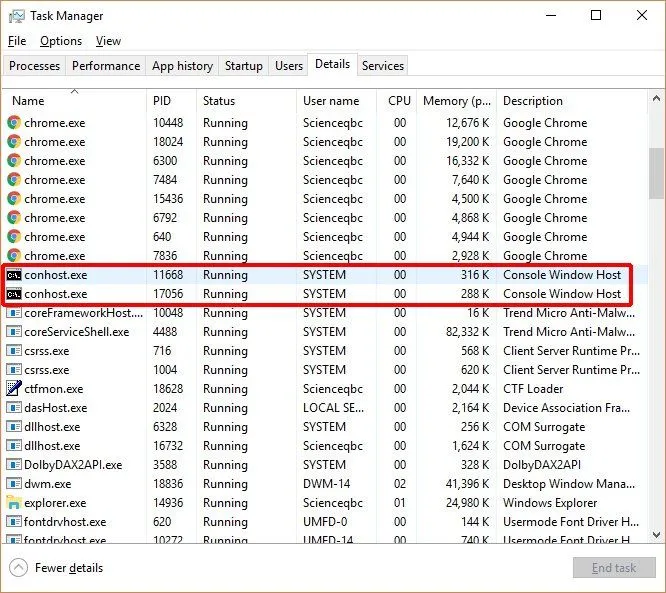
Conhost.exe is an important Windows process. The full name of conhost.exe is Console Window Host, and it can be seen in the Processes tab in the Task Manager. Conhost.exe is associated with csrss.exe (Client/Server Runtime Subsystem) and cmd.exe (Command Prompt) processes.
The primary purpose of conhost.exe is to host the window that command line apps like Command Prompt run inside, handling everything you see and click on screen. Along the way, it also adds some nifty external features that older versions of Windows lacked. For instance, thanks to conhost.exe, the Command Prompt uses the same themed window frame as other programs, and you can drag and drop a file straight onto it.
In order to wrap your head around the concept of conhost.exe, it’s important to know a few things about Windows Command Prompt and the processes associated with it.
What Is Conhost.exe?
Conhost.exe is a process that you can see in the Processes tab in Windows Task Manager in Windows 10. It is actually a process that Windows 10 runs on your system when it’s up and running.
Command Prompt is one of the ‘signature’ applications of the Windows operating system. It is actually a command line interpreter application that is used to execute commands, which, in turn, automate tasks via scripts and batch files, and ultimately do a ton of tasks. You could execute a variety of administrative actions and resolve or troubleshoot certain Windows issues.
What the Command Prompt of Windows 10 looks like:
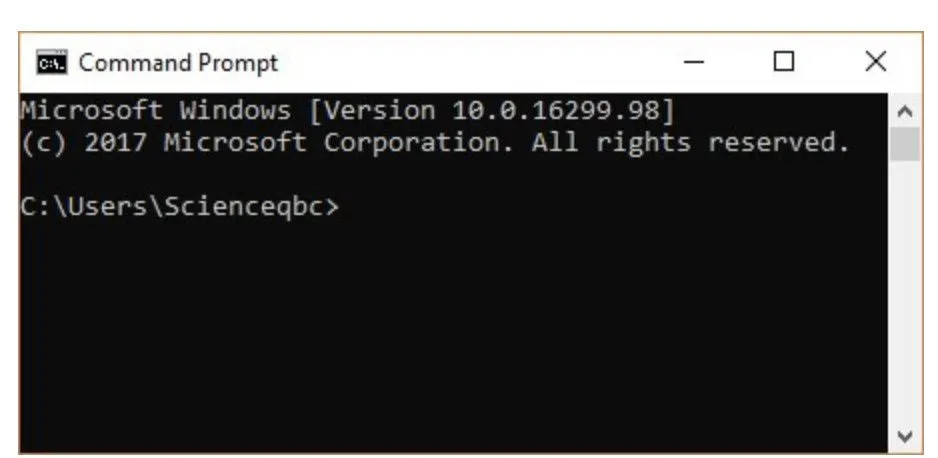
In short, you could literally turn the entire operating system upside down if you know your way around Command Prompt.
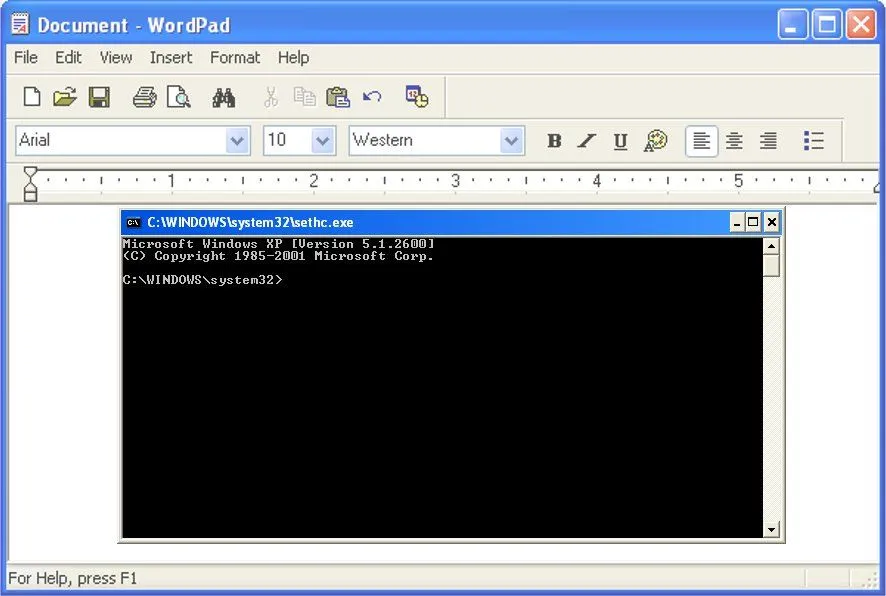
Back in the days of Windows XP, the Command Prompt window was drawn by a process called the Client/Server Runtime Subsystem (CSRSS).
Now, a notable thing about CSRSS is that it runs as a critical, system-level process with high privileges. So, this approach had a couple of drawbacks. For example, if CSRSS crashed, it could bring down the entire system. This was not just a reliability issue, but also a security concern, since letting an interactive console window run inside such a powerful process is risky. You don’t want your entire system to crash, or to be exposed, just because of a problem in a single process.
Furthermore, since the developers didn’t want to risk theme code to run in a system process, the CSRSS was not themed. As a result, the Command Prompt in those days had the old, classic look, as opposed to the modern, stylish look it has today.
This can only be understood visually, so here’s an example:
Windows 7 And Conhost.exe
When Windows 7 took over, the Console Window Host process, a.k.a. conhost.exe, also saw the light of the day. It’s a process that ‘sits’ in the middle of CSRSS and Command Prompt (cmd.exe).
It not only fixes the theme and user interface issue that we discussed earlier, but also lets you drag and drop files directly onto Command Prompt, a feature that was not available in the previous versions. This has all been made possible due to conhost.exe, which is why you see conhost.exe under Processes in the Windows Task Manager.
Although you see conhost.exe as a separate entity from CSRSS in the task manager, the former is still closely related to CSRSS. In fact, csrss.exe is the process that launches conhost.exe whenever a console application starts.
All in all, suffice to say that conhost.exe is akin to a shell that pulled the console window out of the high-privilege CSRSS process. That keeps the risky, interactive part isolated for better security, while still affording the ability to integrate modern interface themes and elements. Since each console application gets its own host, that’s also why you may spot several conhost.exe entries in Task Manager at once.
This setup is still in place on Windows 11. The main change is that recent versions can hand the on-screen window over to Windows Terminal, which became the default front-end for the Command Prompt and PowerShell in a 2022 update. Conhost.exe stays in the picture behind the scenes, doing the console housekeeping while Terminal handles the look and feel.
Conhost.exe vs. Csrss.exe vs. Cmd.exe
These three names tend to crop up near each other in Task Manager, and it’s easy to muddle them. Here’s the quick way to tell them apart.
Cmd.exe (Command Prompt) is the client. It’s the command-line interpreter that actually reads what you type and runs it. Like other command-line programs, it deals purely in streams of text and leaves the job of drawing a window to something else.
Conhost.exe (Console Window Host) is the host, or server. As Microsoft puts it, conhost.exe is both the server for the Windows Console APIs and the classic user interface for working with command-line applications. In plain terms, it supplies the window that Command Prompt runs inside and manages everything you see and click.
Csrss.exe (Client/Server Runtime Subsystem) is the critical system process that used to do that hosting job itself, back before Windows 7. These days it looks after tasks such as process and thread management and part of the shutdown sequence, and it’s the process that launches a fresh conhost.exe whenever a console application starts.
One practical difference: because csrss.exe is flagged as a critical process, Windows won’t let you end it, and killing it would crash the machine. That’s precisely why hiving the interactive console window off into conhost.exe was worth the effort in the first place. It’s also worth knowing that tech-support scammers like to point at csrss.exe and call it “a virus” to frighten people into paying for bogus fixes. The genuine one lives in the System32 folder and is perfectly safe.
How Many Conhost.exe Processes Should You See?
Open Task Manager on a busy PC and you might spot not one conhost.exe, but three, five, or even more. That’s normal, and not a sign that something is wrong.
There isn’t a “correct” number. Windows starts a separate console host for each console application that’s running, and shuts it down again when that application closes. So the count naturally rises and falls depending on what your computer happens to be doing at any given moment.
The part that catches people out is that many of these console apps never show you a visible window. Background helpers, such as graphics drivers, gaming-peripheral utilities, hardware-monitoring apps and backup tools, quietly run command-line tasks of their own, and each one is handed its own conhost.exe. That’s why a machine that looks idle can still list several of them.
If a stray conhost.exe makes you uneasy, you can trace it back to whatever launched it. In Task Manager’s Processes tab, expand the parent app to see the console tasks grouped under it, or use a tool like Microsoft’s Process Explorer to follow the chain right back to whatever spawned it. Once you know which program is responsible, you can apply the same file-location check described below to confirm it’s the real thing.
Conhost.exe Virus
Is conhost.exe a virus?
The answer is: no, conhost.exe is not a virus. It’s actually an official component of the Windows operating system. As such, it’s completely harmless by itself.
However, it is POSSIBLE that a virus could replace the real Console Window Host (conhost.exe) with an executable of its own. Although it’s unlikely, you could still check the authenticity of conhost.exe by right clicking on it and choosing the “open file location” option.
If it’s stored in the Windows/System32 folder, then you’re all set; if it’s stored in some other folder, it might potentially be a virus.
That’s why it’s essential to have a good antivirus program protecting your system against such virus and malware attacks.